Revit MEP Quantity Takeoffs Off By 15-20%: The Cause Is the Model, Not the Schedule
Our MEP model setup checklist flags item 6: assign a system to every duct and pipe, not just model the geometry. Here’s why — skipping this step is the single most common cause of quantity schedules being off by 15-20% with nobody able to trace the root cause.
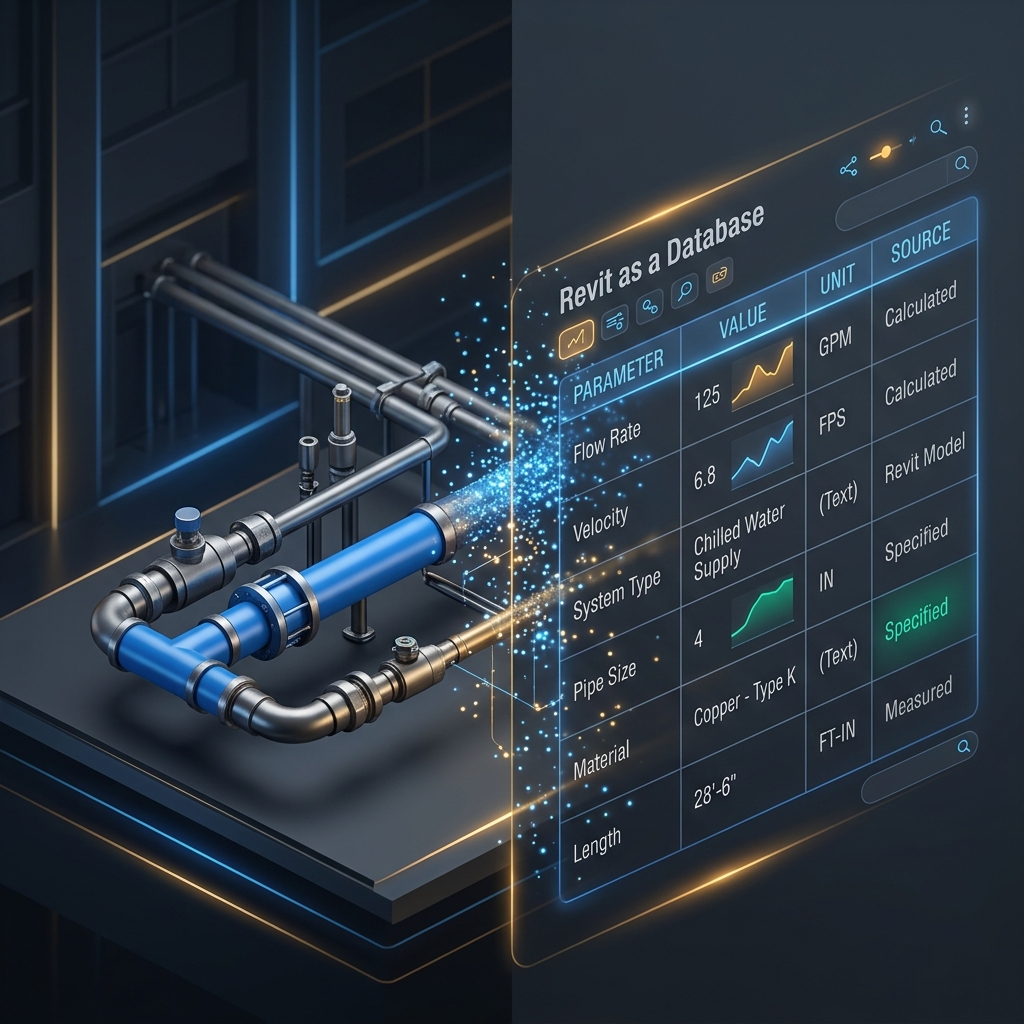
The model is a database, the Schedule just reads it back
A Schedule doesn’t calculate anything on its own — it reads and groups data that already exists on the elements. If elements are missing parameters or the system has open connections, the Schedule accurately reflects that gap; it isn’t the schedule’s fault.
Open connectors break both the Schedule and system calculations
When ducts or pipes have open connector ends, Revit can’t recognize a closed system. The result: pressure drop and flow calculations fail, and the Schedule ends up missing or duplicating quantities because Revit can’t group elements that belong to the same system correctly.
Check with Show Disconnects (available per discipline — HVAC, Piping, Electrical) so Revit automatically flags every open point in the model with a visual warning.
Setting up parameters for correct filtering and grouping
A quantity schedule is only useful with enough attributes to filter by zone, floor, or construction phase. Make sure elements carry the necessary Shared Parameters from the moment they’re modeled — don’t defer it, because in practice nobody goes back to backfill elements once the project is in its finishing stage.
Checklist before exporting a schedule for estimating
- Run Show Disconnects per discipline and fix every open point.
- Build a test schedule to scan for elements missing data or carrying unusual values.
- Verify filtering/grouping by floor, zone, and construction phase before exporting the final version.
Common mistake
Suspecting Revit is “calculating wrong” when a schedule is missing data, even after Show Disconnects reports clean — this is almost always the schedule’s Filter/Sort setup not covering every category that needs filtering, not a model or software bug.
📋 Free 15-Point MEP Model Quality Checklist
Schedule/QTO accuracy is just 1 of 15 items. A ready-to-use tick-box list to run before you hand off a model — catch clashes and quantity errors early. Fill in your info to get the free checklist.
Or see the hands-on Revit MEP course by TBT Academy (Vietnamese) ↗
Frequently asked questions
- What is Show Disconnects for?
- It flags open connector points per discipline (HVAC/Piping/Electrical) - the cause behind Revit failing to compute a continuous system and Schedules grouping quantities incorrectly.
- Why is a Schedule still missing data even with no open connectors?
- Most likely the Schedule's Filter/Sort setup doesn't cover every category or parameter needed - not a model error. Check the schedule configuration before suspecting the model.
- Do parameters need to be filled in from the concept stage?
- Not 100% from day one, but parameters needed for basic filtering/grouping (system, zone, floor) should be present early to avoid having to backfill a large batch of elements later.